Sådan fungerer blokke i @webhouse/cms
En trin-for-trin visuel guide til blok-systemet — fra at definere en bloktype i kode til at indsætte den i en artikel og se den gengivet på siden.
Blokke er genanvendelige indholdskomponenter, som du kan placere i enhver artikel. Tænk på dem som LEGO-klodser: du bygger dem én gang, giver dem et navn, og derefter indsætter du dem hvor som helst med en enkelt reference. En sammenligningstabel, en bemærkning, et billedkarusel — alt dette er blokke.
Denne guide gennemgår hele processen: fra den kode, der definerer en bloktype, til at oprette én i administrationspanelet, indsætte den i en artikel og se den live på siden.
Hvad er forskellen på en blok og et felt?
Et felt er en datapost, der tilhører ét dokument — titlen på et indlæg, uddraget, datoen. Det lever inde i det dokument og kun dér.
En blok er et selvstændigt dokument i sin egen samling, som kan refereres fra hvor som helst. Én sammenligningstabel kan bruges i ti forskellige artikler. Rediger den én gang, og alle ti artikler opdateres automatisk.
Del 1: Bloktyper defineres i kode
Før du kan oprette en blok i administrationspanelet, skal en udvikler definere, hvilke typer af blokke der findes, og hvilke felter hver type har. Dette sker i cms.config.ts:
blocks: [
  defineBlock({
    name: "comparison",
    label: "Sammenligning",
    fields: [
      { name: "less", type: "array", label: "Mindre (venstre kolonne)" },
      { name: "more", type: "array", label: "Mere (højre kolonne)" },
    ],
  }),
  defineBlock({
    name: "notice",
    label: "Bemærkning / Udvalg",
    fields: [
      { name: "text", type: "textarea", label: "Tekst" },
      { name: "variant", type: "select", label: "Variant",
        options: [
          { label: "Info", value: "info" },
          { label: "Advarsel", value: "warning" },
          { label: "Tip", value: "tip" },
        ]
      },
    ],
  }),
]
Denne kode fortæller CMS’en: "En sammenligningsblok har to kolonner med punktopstillinger. En bemærkningsblok har et tekstfelt og en stilvælger."
Når dette er på plads, viser administrationspanelet automatisk de rigtige felter, når du vælger en bloktype — ingen ekstra konfiguration nødvendig.
Del 2: Samlingen Blokke
I administrationspanelets sidebjælke finder du Blokke — en samling ligesom Indlæg eller Sider. Hvert element her er én genanvendelig blok.
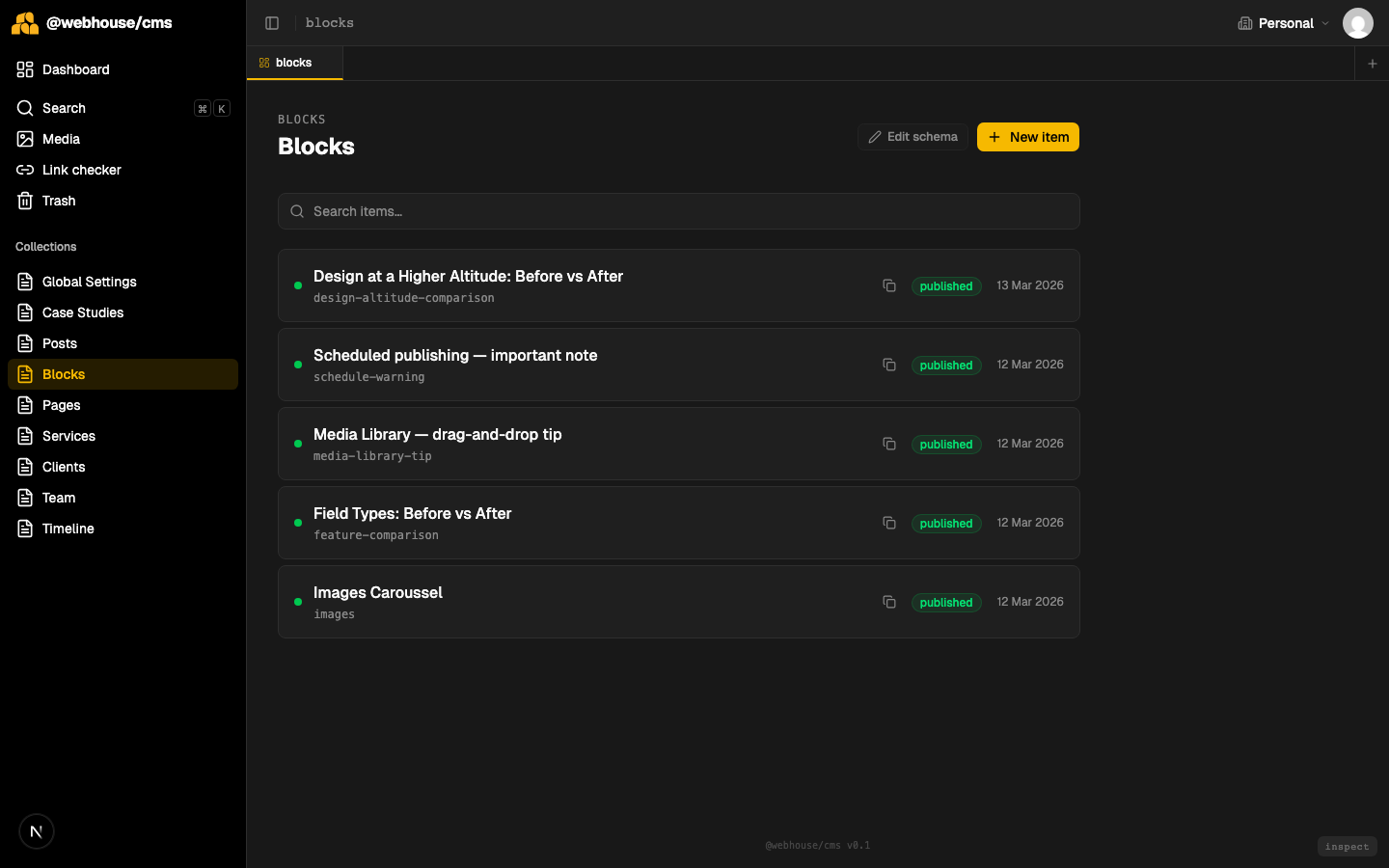
Du kan se alle dine blokke på ét blik: deres visningsnavn, deres slug og deres publiceringsstatus. Sluggen er det, du senere bruger til at indsætte blokken i en artikel.
Del 3: Opret en ny blok
Klik på + Nyt element øverst til højre. En lille dialogboks dukker op, hvor du bliver bedt om at indtaste et navn — dette bliver både visningsnavn og slug.
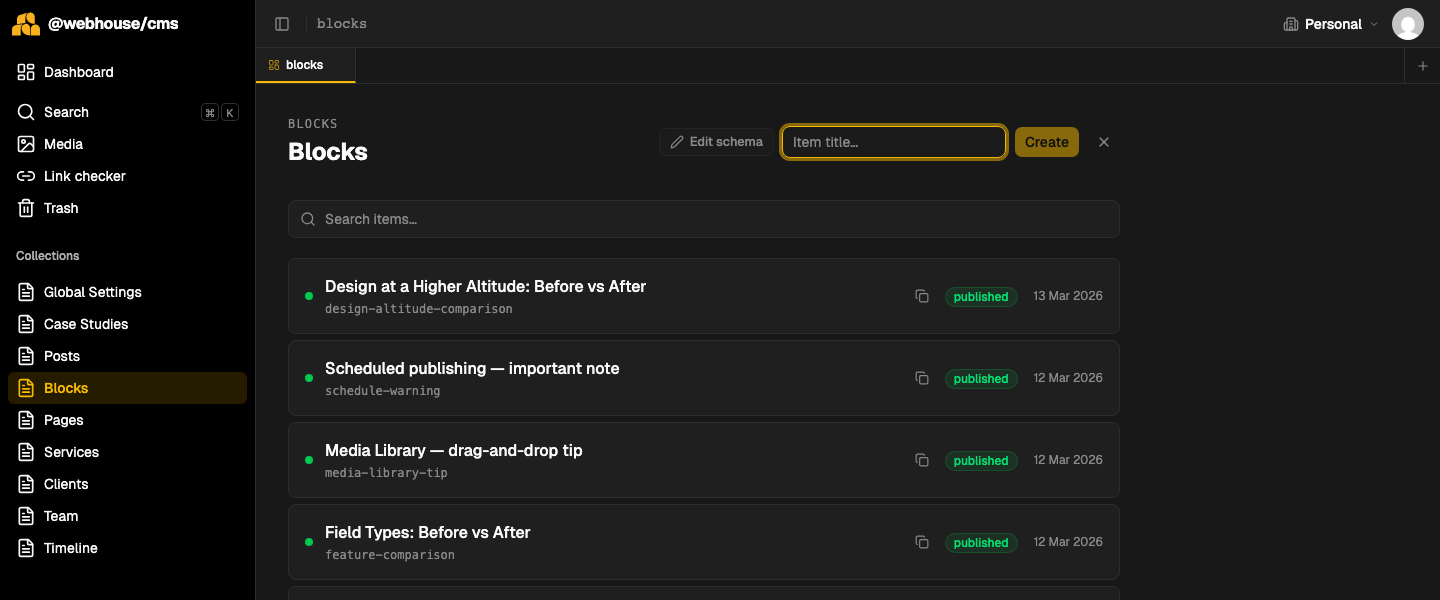
Skriv et beskrivende navn som f.eks. "Design i højere højde: Før vs Efter" og klik på Opret. Redigeringsværktøjet åbnes.
Del 4: Vælg bloktype og udfyld felterne
Det første felt, du ser, er Bloktype — en rullemenu med alle de typer, der er defineret i cms.config.ts. Vælg én, og de type-specifikke felter vises straks nedenunder.
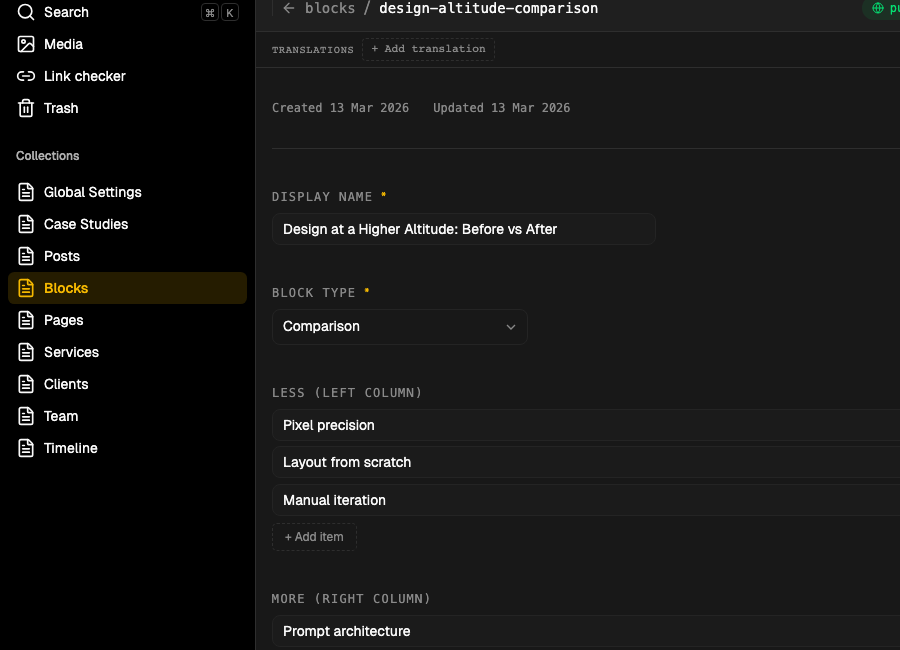
For en sammenligningsblok vil du se Mindre (venstre kolonne) og Mere (højre kolonne) — hver er en liste med punktopstillinger. Klik på + Tilføj element for at tilføje en linje, tryk på Enter for at hoppe til næste linje, eller klik på × for at fjerne én.
Udfyld begge kolonner, og tryk derefter på Gem og Publicer.
Del 5: Indsæt en blok i en artikel
Åbn ethvert indlæg i redigeringsværktøjet. Du vil se indholdslinjen øverst i tekstfeltet:

Puslespilsbrik-ikonet (🧩, nummer to fra højre) åbner en blokvælger. Klik på det, søg efter din blok efter navn eller slug, og vælg den. Redigeringsværktøjet indsætter et mærke som dette:
«block:design-højere-højde-sammenligning»
Dette mærke er usynligt for læserne — det er blot en reference. Det faktiske blokindhold hentes og gengives, når siden vises.
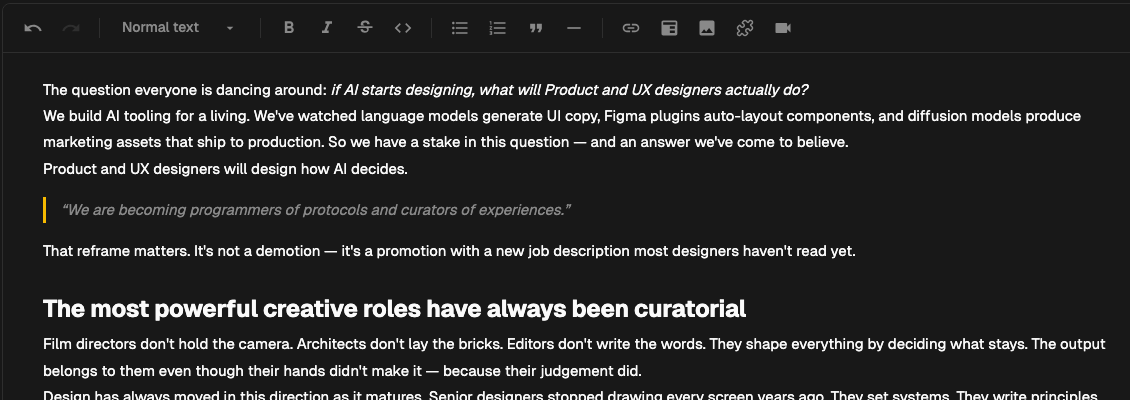
Du kan placere et blokmærke hvor som helst i teksten — mellem afsnit, efter en overskrift, i slutningen af et afsnit. Det flyder naturligt med det omkringliggende indhold.
Sådan ser det ud på siden
Når en læser åbner artiklen, løser CMS’en henvisningen «block:slug» og gengiver den fulde komponent:
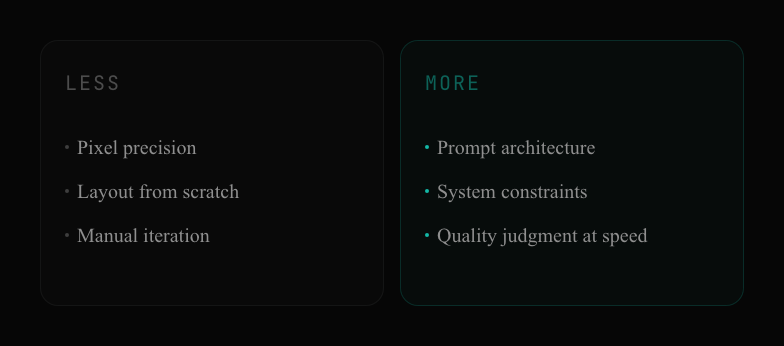
Blokken arver automatisk sidens designsystem. Der er ingen ekstra styling at foretage — bloktypens visuelle design er defineret én gang af udvikleren, og indholdsredaktøren udfylder blot dataene.
De tre bloktyper, der er tilgængelige i dag
Sammenligning — to kolonner med punktopstillinger side om side. God til før/efter, gammel måde/ny måde, funktionsforskelle.
Bemærkning / Udvalg — en fremhævet boks med en etiket. Findes i tre varianter: Info (turkis), Advarsel (ravfarvet) og Tip (lilla). Brug den til vigtige noter, advarsler eller pro-tips.
Karusel — et scrollbart billedgalleri med en valgfri billedtekst. Nyttig til gennemgange af skærmbilleder eller produktbilleder.
Én blok, mange artikler
Blokkenes sande styrke bliver tydelig, når du skal opdatere noget. Forestil dig, at du tilføjer en fjerde punktopstilling til en sammenligningsblok, der bruges i tre artikler. Du redigerer blokken én gang. Alle tre artikler opdateres øjeblikkeligt — ingen gennemrodning af individuelle indlæg.
Dette er det modsatte af kopiering og indsættelse af indhold. Blokke refereres, ikke dupliceres. Indholdet lever ét sted, og artiklerne peger blot på det.